Chrome Remote Desktop for Patent Filing Help: Consent and Control
· 4 min read
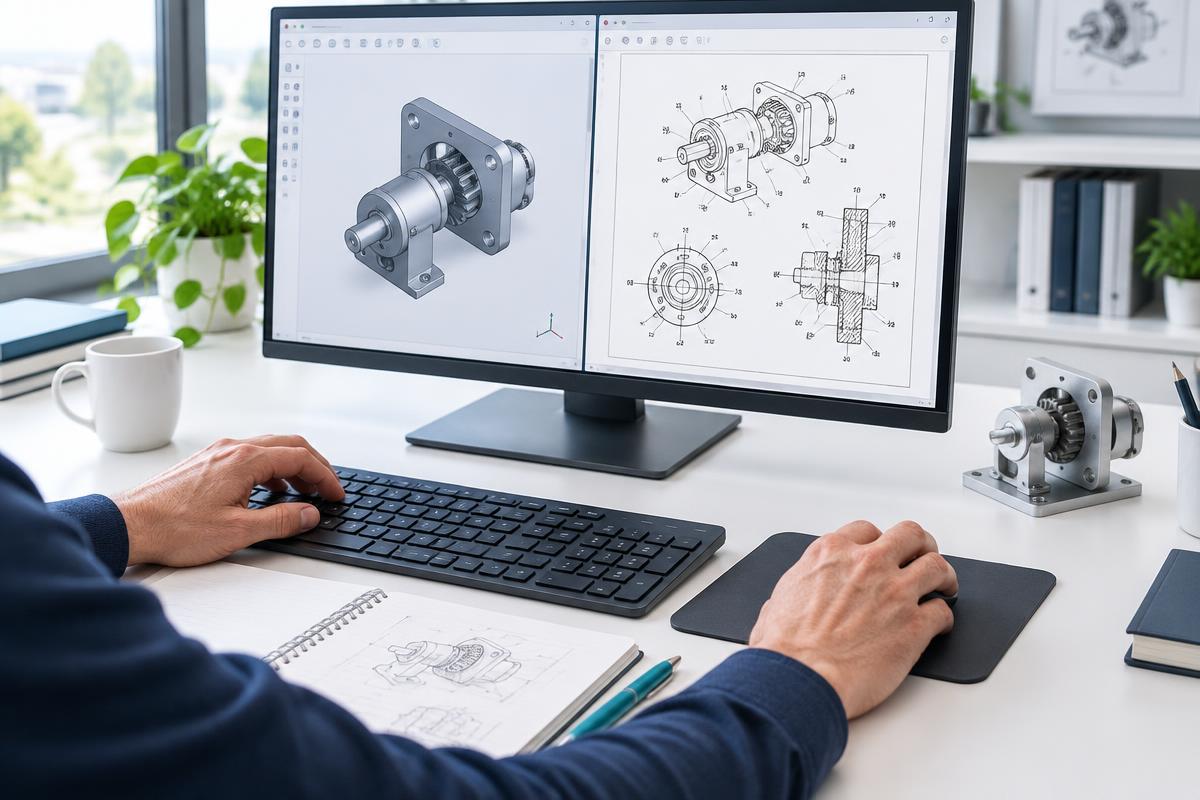
Remote assistance is convenient, but screen sharing is a real permission—not a decorative connection indicator. Google explains that the person you authorize can access your computer’s applications, files, email, documents and history. Share access only with a trusted, expected assistant and understand that unrelated information may be visible.
Prepare a focused workspace
Close unrelated documents, email windows and password managers before sharing. Open the reviewed filing files and the official Patent Center page. Do not put your USPTO password, identity documents or sensitive credentials into GetQuickPatent project notes, email or messages. Log in yourself and keep account and payment steps private.
Generate the code when the assistant is ready
Chrome Remote Desktop support uses a one-time code and your approval of the connection. In GetQuickPatent, wait for the assistant-ready notice before creating that code. Enter it only in the designated session field, not a blog comment or an email alert. A submitted code is not proof that the assistant has connected; check the actual sharing prompt on your computer.
Stay present and review every action
The assistant can help with administrative entries and file uploads while you watch. Pause to resolve unknown facts. Review certifications and signatures yourself and involve a registered practitioner when required. Never approve a step solely because an assistant says it is routine. Government fees are separate and paid directly to the USPTO.
End access when finished
Google provides a Stop Sharing control to end the session. Use it when the help is complete or whenever something is unexpected. Save official submission and payment records separately. GetQuickPatent’s coordinated assistance is not legal representation, automatic submission or a guarantee of a patent; your consent and accurate review remain central.
Start your provisional patent
Start your provisional patent